
Send your first email

Step 5: Send your first email

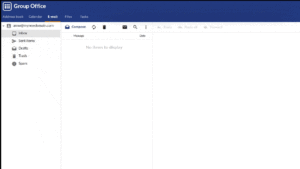
 Now that you have set up your email address, you can start using it with your favorite Internet browser (Chrome, Firefox, Safari, etc.) by accessing the Webmail. The Webmail doesn’t need additional setup, and you can access it from any computer, smartphone, or tablet without installing other applications.

You can access the Webmail in two ways:

  • By typing in the Browser this kind of URL: webmail.mydomain.com (make sure you replace mydomain.com with your domain name). This works only if you have set up the DNS records for webmail.
  • Straight from your Admin Panel by clicking on the envelope icon on the Users page. You can save the link and bookmark it to your favorite browser for quick use in the future:

Congratulations, you have completed the setup of your email address! You can now send your first email and let everybody know you have a new address.
 

Webmail – mark email as legit (Not Spam)

Webmail – mark email as Spam or block a sender

CalDAV / CardDAV allow delete via Synchronization

Webmail – Signature: create, load and set one as default

Webmail – Send as Alias

Webmail – Folders management

Webmail – How To

CalDAV Synchronizer Setup

Manage Extensions

Disabling local delivery to an account

How to avoid forged e-mails?

ownCloud – free file storage and sharing on the cloud

Configure Incoming E-mail Rules

Share E-mail Folders

Track Remote Deliveries

Retrain Messages

Set Spam filter preferences and manage spams

Whitelist or Blacklist an e-mail address

Set Vacation Message

Forward Messages

2FA – Two-factor authentication for mailbox

Change your mailbox password

User Features – How To

Logs

Set Branding

Filtering: Whitelist / Blacklist

Manage Smart Lists

Manage Lists

Manage Alias Email

Manage Alias Domains

Manage Domains

Manage Users

Security

Manage Sub-Admins

Change Admin password

Admin Panel Features – How To

Setup e-mail on Mozilla Thunderbird

Setup IMAP e-mail on Android

Setup IMAP e-mail on iOS

Setup e-mail on Outlook

Setup IMAP on e-mail clients

Autodiscover

Servers & Ports

Webmail client

DNS Configuration

STEP 3: Setup the DNS for your domain The next step is to specify to the Interne

Configure a new e-mail address

Set up your email client

Send your first email

Step 5: Send your first email  Now that you have set up your email address, you

Setup DNS for your domain

STEP 3: Setup the DNS for your domain The next step is to specify to the Interne

Create a new email address

STEP 4: create a new Email address  In the Admin Panel, in the left side menu, c

Add your domain

STEP 2: ADD YOUR DOMAIN In the Admin Panel, from the left side menu, click on th

Log in to the Admin Panel

STEP 0: SIGN UP  for a sDominio email service and you will receive an email with

Get started

sDominio_WIKI

Chat Icon Close Icon